meta data for this page

N4V Panel - PDF Export
User Extension
The User Extension gives the Webi user access to the N4V PDF Export.
Using the N4V PDF Export
- Display the N4V PDF Export in the N4V panel.
- Three types of export are possible:
- Complete export of the current report (current page)
- Single export of a report element from the list presented
- Single export of a selected report element
PDF Export of the Current Report
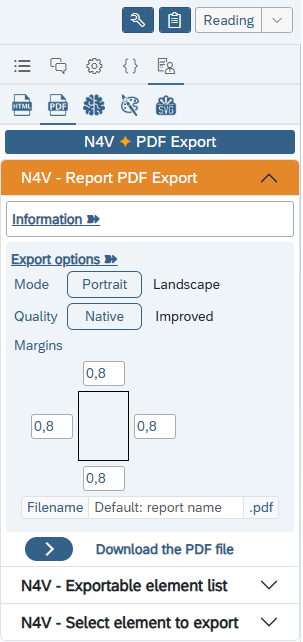
- When the “Export PDF Report” panel is displayed, you can download a PDF file of the current page of the current report.
- A few options are available regarding the PDF export.
- You can choose to generate a PDF in Portrait or Landscape mode.
- The quality of the export can be enhanced (the PDF file will be heaviest within an Improved quality).
- You can define the margins (all around the page) to keep when exporting the report in PDF.
- You can choose a specific name for the PDF file generated.
PDF Export of a List Item
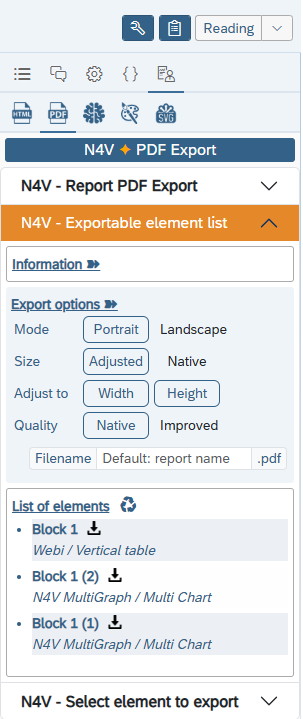
- When the “List of Exportable Items” panel is displayed, a list of all the elements in the current report that can be exported to PDF is presented.
- Each element is presented by its name (Webi block) and type (Webi Table, N4V Element, etc.).
- You can then click the download icon for the desired element.
- The PDF file for the selected element is then downloaded to your computer.
- You can choose to display the element as a full frame on the page (or with its native size).
PDF Export of a Selected Element
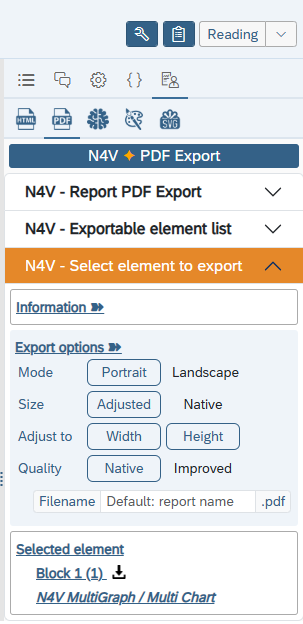
- When the “Select an element to export” panel is displayed, select an element from the current report (feature only working on SAPBI 4.3SP4+).
- The element is presented by its name (Webi block) and type (Webi Table, N4V Element, etc.).
- If the element is exportable, the “Selected Element” section is updated, and you can then click the download icon.
- The PDF file of the selected element is then downloaded to your computer.
- You can choose to display the element as a full frame on the page (or with its native size).