Table of Contents

Modal mode in N4V widgets
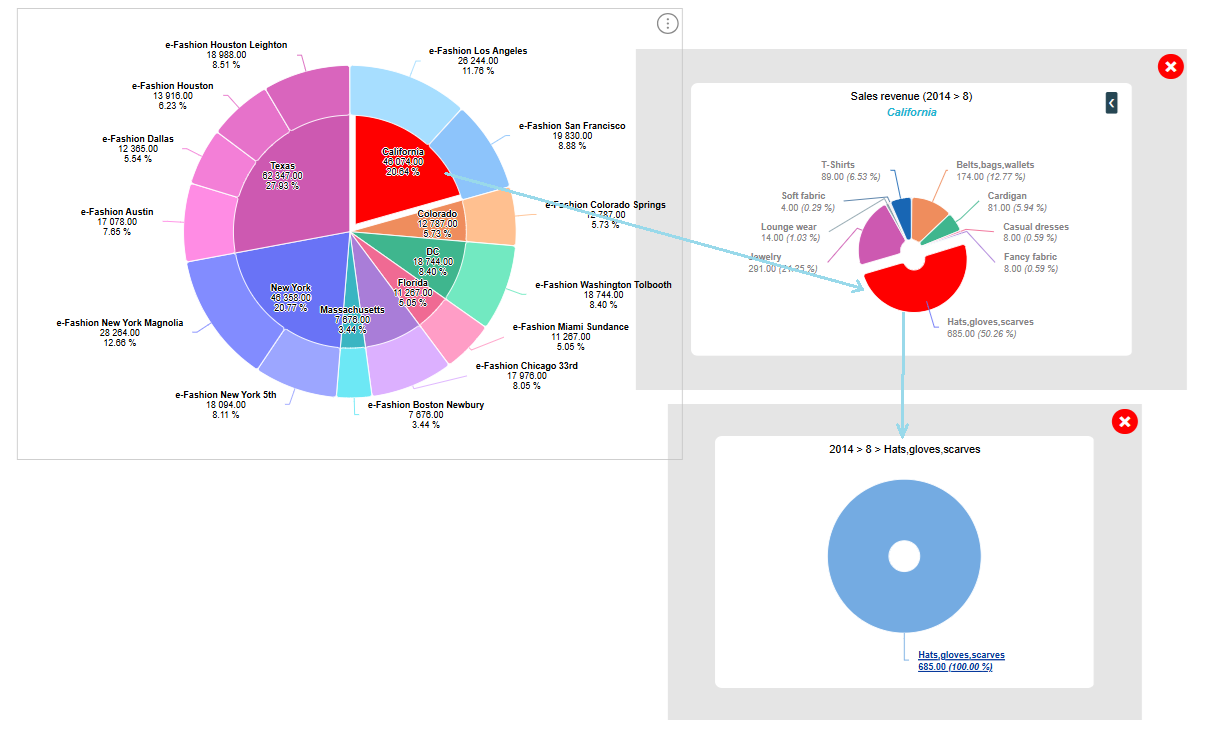
Starting on 2026.1 version of N4V, you can use the modal mode on all N4V widgets. This mode display your widget in a popup that can be hidden/displayed depending on the filtering of another chart. A close button is also displayed on the top right corner of the popup.
Workflow to display a widget in modal mode
Creation of the widget calling the popup
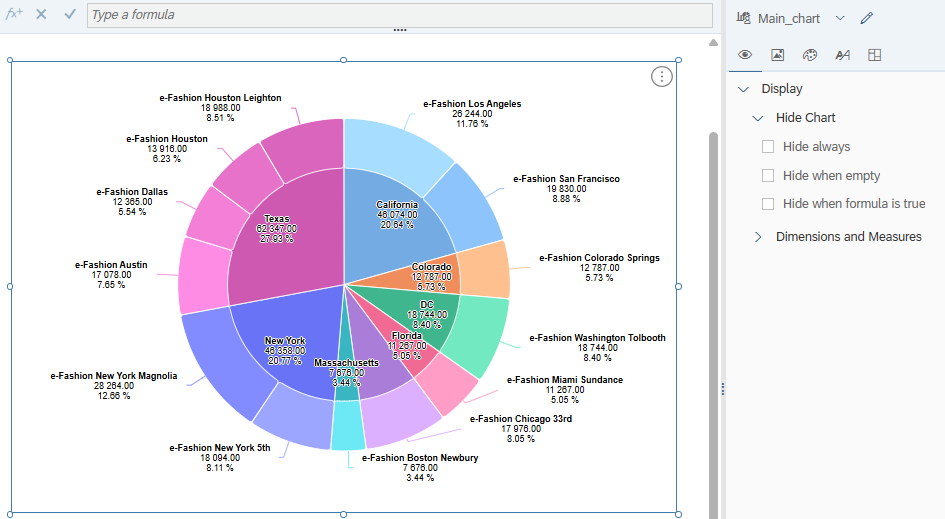
Create the parent widget that will call the chart in a popup. Name it “Main_chart”.
Creation of the popup
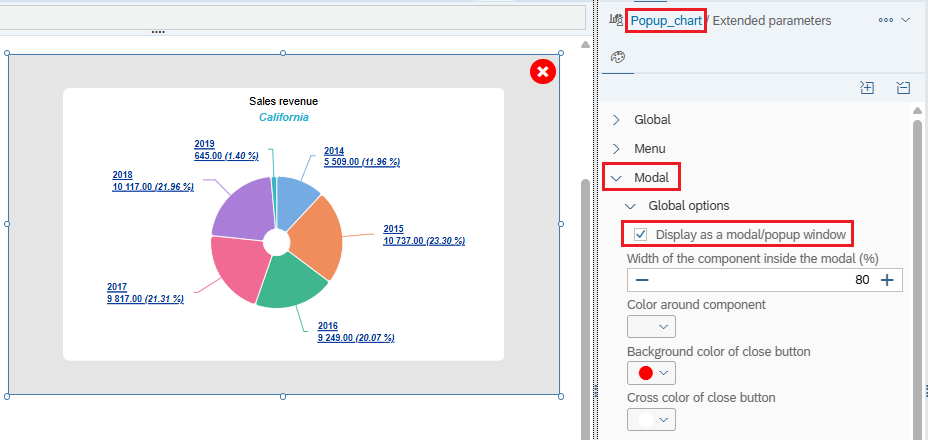
Create the child widget that will be displayed in a popup. Name it “Popup_chart”. In the Extended parameters, check the “Modal > Global options > Display as a modal/popup window”.
Creation of the Webi linking
Create a Webi linking element on the “Main_chart” to filter the “Popup_chart”. Name it “link_main_popup”
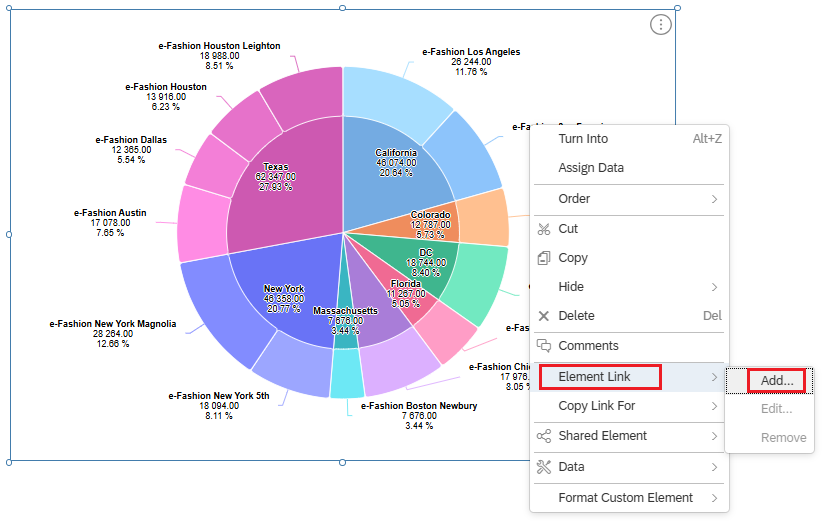
Filtering on all objects and affect the “Popup_chart” widget.
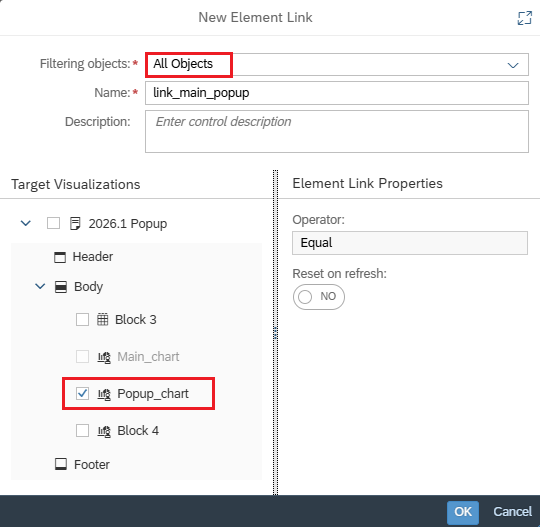
Now the “Popup_chart” is correctly filtered when you select a value in the “Main_chart”.
Hide or display the popup
To hide the popup when no value is selected and to display the popup when a value is selected in the “Main_chart”, you just need to add the following formula in the “Display > Hide chart” option of the “Popup_chart” :
=ElementLinkingFilters("Main_chart")=""
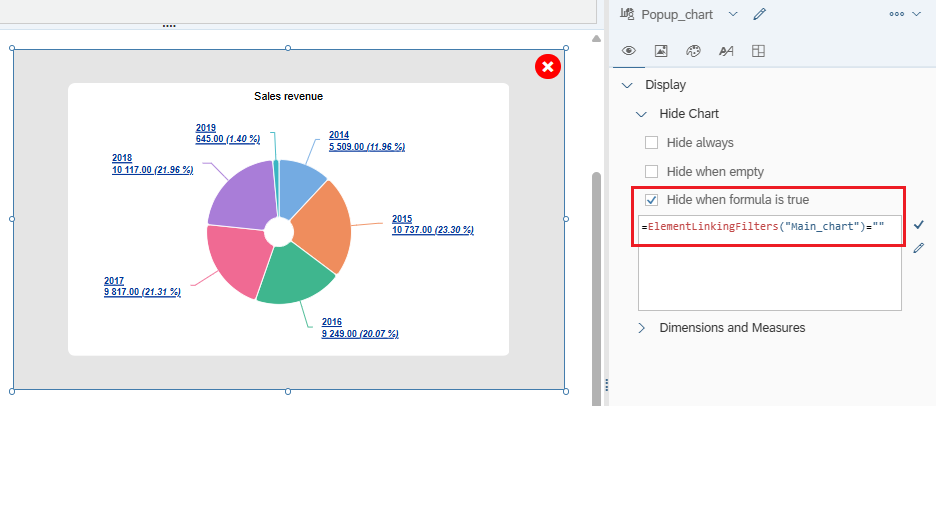
Now the “Popup_chart” is correctly hidden/displayed when a selection is done or not in the “Main_chart”.
Configuration of the popup
To make the close button working, configure the following extended parameter in the “Popup_chart” :
- Reset on Modal > Input control > closing = “Only specified”
- Reset on Modal > Input control > Input Control list specified (use separator ',') = “link_main_popup”
To display the content of the filtered value in the Title or Subtitle of the popup, configure the following extended parameter in the “Popup_chart” :
- Reset on Modal > Input control > Display Input Control value = “In the subtitle”
To make the selected value of the “Main_chart” (by default in red) reinitialized when the popup is closed, configure the following extended parameter in the “Popup_chart” :
- Reset on Modal > Input control > check “Reinit selection in the parent element”
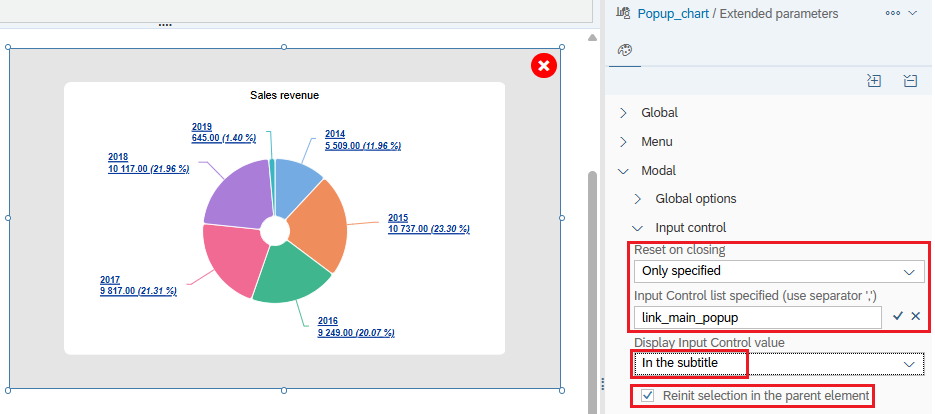
Now the popup is correctly hidden/displayed & filtered according to the selected value in the “Main_chart” and on closing popup, the selection is reset.
Creation of a cascade of popup
If you want a second popup to be displayed when a selection is done in the first popup, you can follow the steps below.
1/ Create the new widget to be displayed as a second popup and name it “Popup 2”
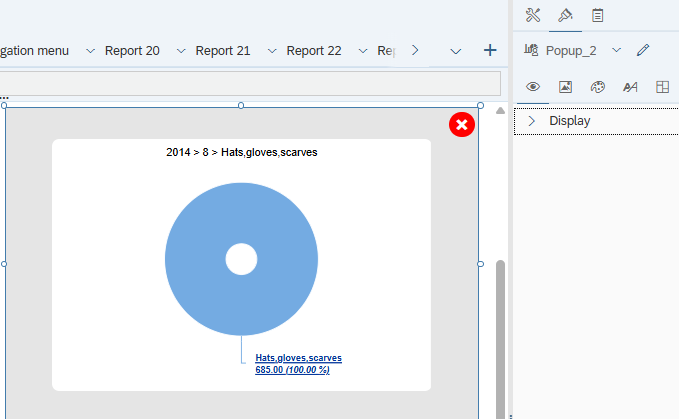
2/ Create Webi Linking element on the first popup (“Popup_chart”) to filter the second popup and name it “link_popup1_popup2”

3/ Update the Extended parameter of the first popup to Reset both Webi Linking Element “link_main_popup” and “link_popup1_popup2” on closing
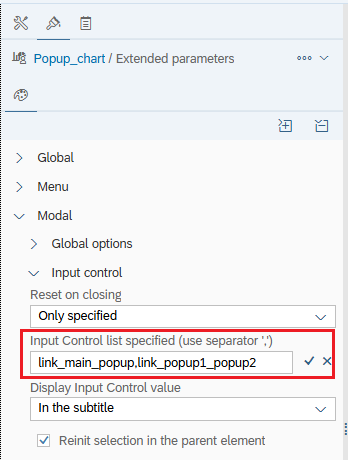
4/ Update the Linking element on the main chart to filter on both “Popup_chart” and “Popup2”

5/ Update the Extended parameters of the second popup to reset the Element link “link_popup1_popup2” on closing, display the selected value of the first popup un the title and reset the selection of the parent element on closing
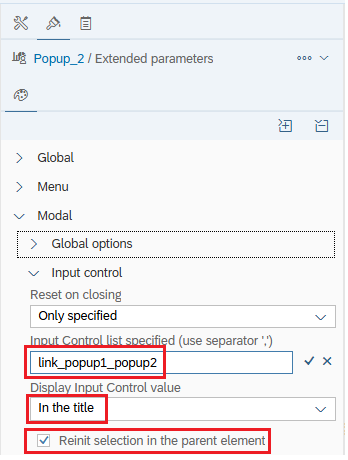
Now the main chart, popup 1 and popup 2 are joint in cascading effect.